Ready to streamline your business?
Keep inquiries, follow-up and booked work connected in Maroo.

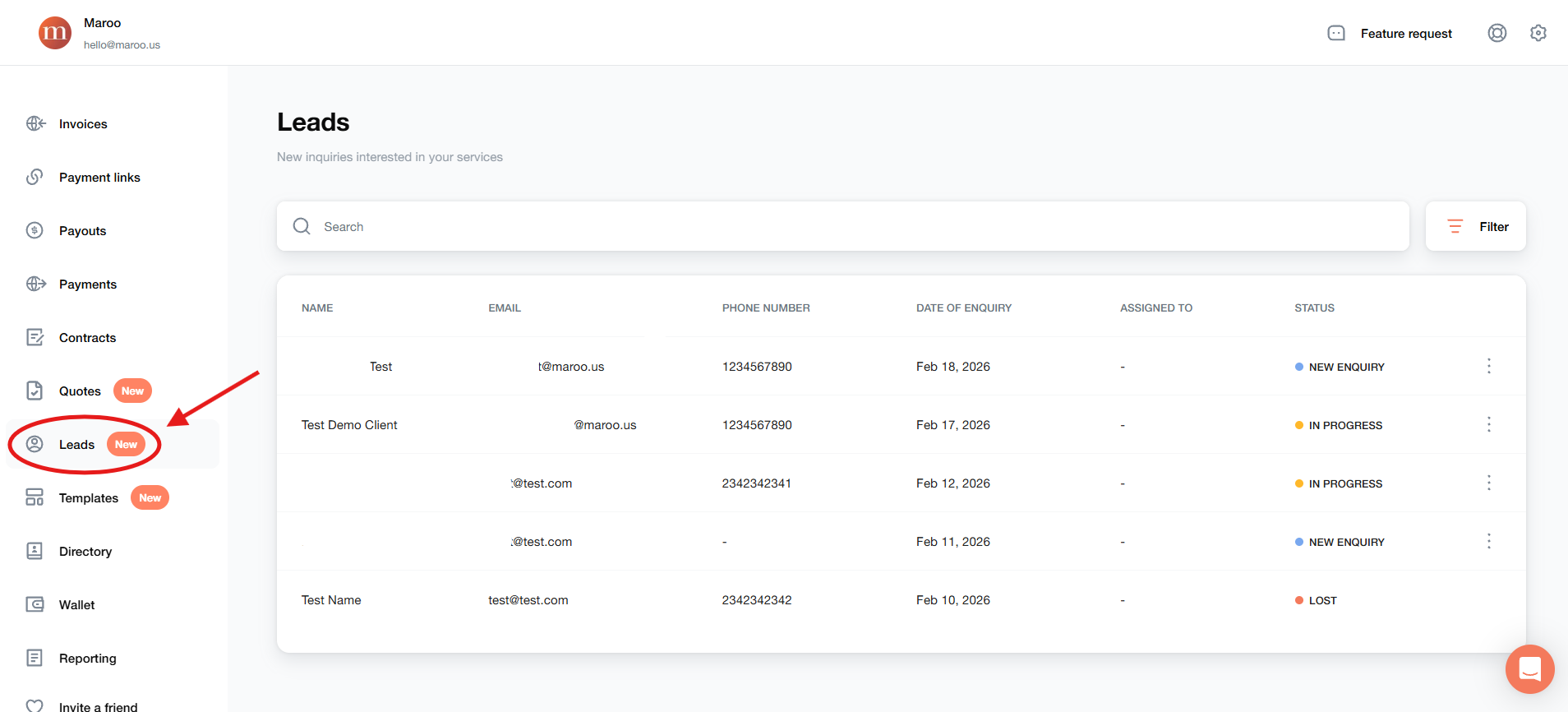
Embed your Maroo lead form on your website or share its link. Submitted inquiries appear in Leads.
Share your form link on your website or social profiles so prospective clients can send an inquiry.
Assign a lead to a teammate and filter the list by the person responsible for following up.
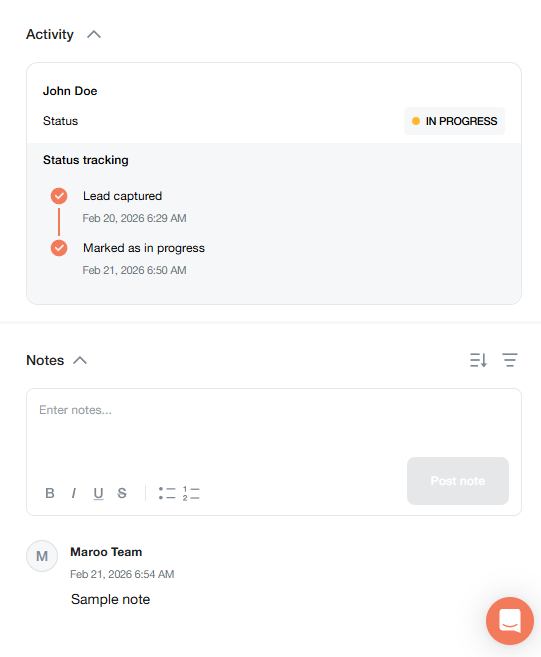
Add internal notes and review the lead’s status and activity as your conversation develops.
Send an email from a lead using connected Gmail. Replies are captured when the recipient keeps the Maroo CC address.
Use the lead’s actions to mark it In Progress, Converted or Lost. Filter by status, assignee or enquiry date.
Create a lead form, adjust its styling and share the link or embed it on your website. Submissions create leads in Maroo with the details the prospective client supplies. Sharing the form on social media gives people a way to inquire; it does not import their direct messages.
Open a lead to review contact and event details, assign a teammate and add notes. Update its status using the lead actions, then filter your list by status, assignee or enquiry date. Keep the record current as your team works toward the booking.
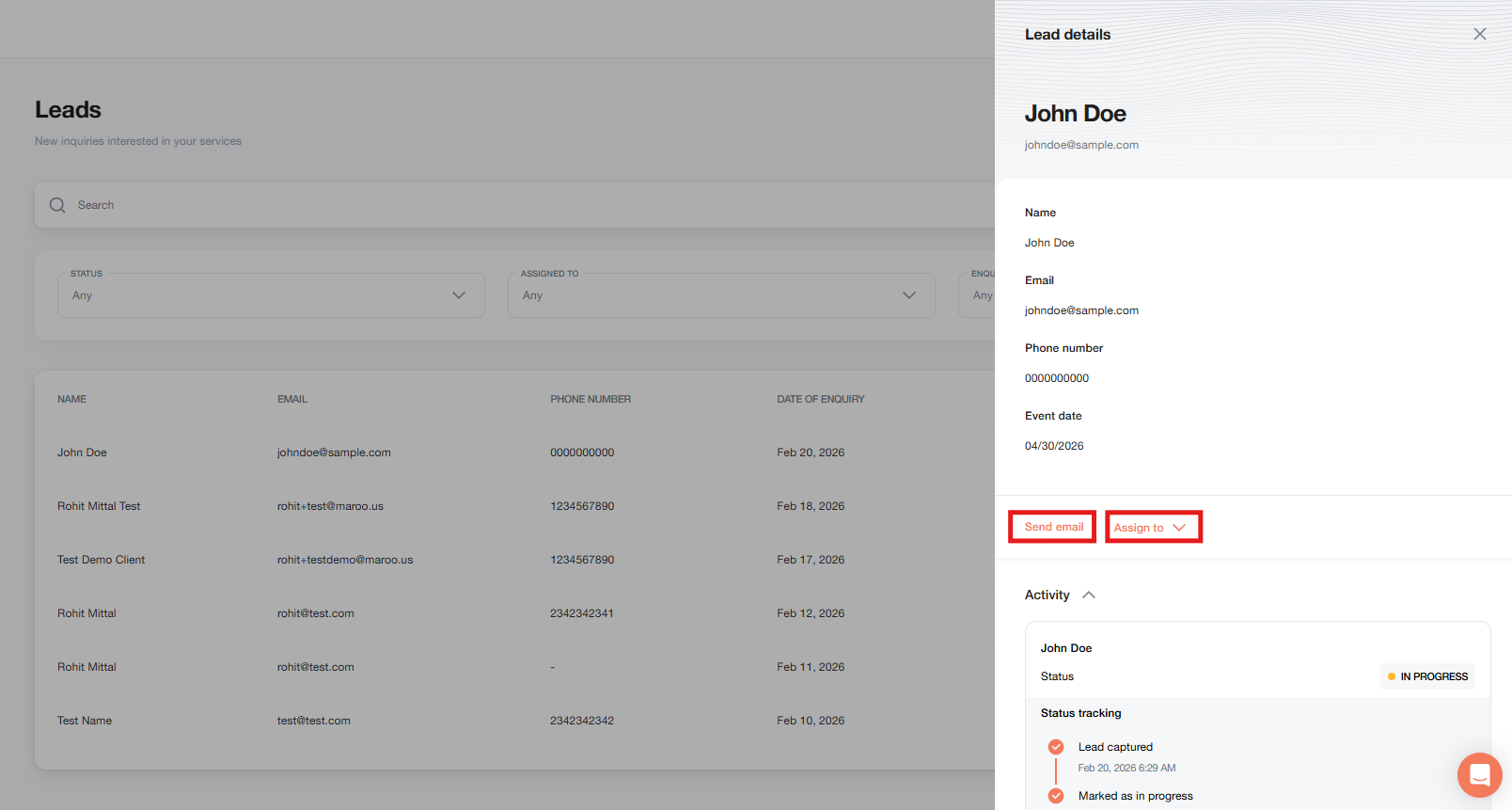
Connect Gmail to send clients and contractors an email from Maroo. Open the lead when you want to follow up. Ask the recipient to use Reply All and retain the Maroo CC address so that response appears in Maroo.
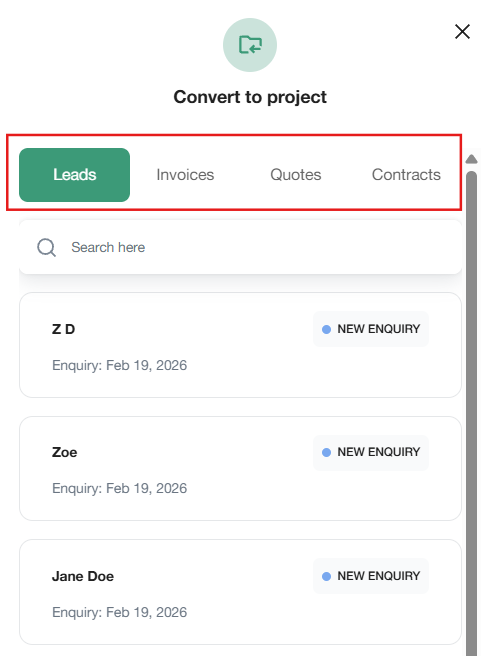
Choose Add Project, then Add From an Existing Item to start a project from an eligible lead. Review the carried-over client details and complete the project information. Inside the project, create or connect quotes, contracts, invoices and questionnaires as separate steps. Reuse a quote template when preparing your offer.
Inquiries submitted through a Maroo lead form appear in Leads. Share the form link or embed the form on your website.
Yes. Use the documented form styling and image controls when creating or editing your form.
Yes. Connect Gmail, then send an email from the lead. Replies are captured when recipients retain the Maroo CC address.
Select the lead through Add From an Existing Item. Review the populated client details, complete the project information and create the project. You can then connect related documents to the project.
The Template Library includes pre-built lead forms, quotes and invoices that you can customize for your business.
Keep inquiries, follow-up and booked work connected in Maroo.
.webp)